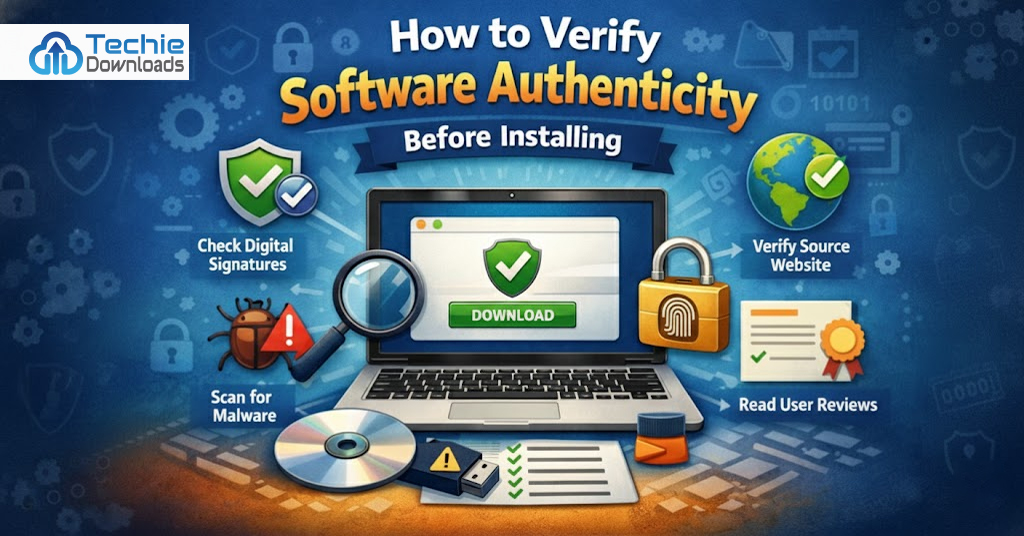
Imagine you find a new program online. It looks helpful. Maybe it’s free or at a discounted price. You’re tempted to install it right away. But wait. Do you really know if it’s safe? What if it’s a fake or contains viruses? Many people fall for fake software every day. You download it. You click install. Suddenly, your system acts weird. Your files disappear. Or strange ads keep popping up. That’s how malware spreads. This story is far too common and the reason why you must always verify software authenticity before installing any app or program.
Software that is not real or has been changed can harm your system. It might even steal private data. Some fake apps look almost like the real one. That’s tricky. So, it’s important to always check a few things first. You need to be smart and careful. In this guide, you will learn simple ways to verify software authenticity before installing programs. Don’t worry. These steps are easy for anyone to follow. No hard tech skills needed.
We will cover how to check the publisher, digital signatures, source website, and even file hash. We’ll also show you helpful tools and tips. One section also shares real deals from TechieDownloads.com where verified software is available. Let’s dive in. Each step helps keep your system safe.
Why You Must Verify Software Authenticity
Today, fake software is everywhere. Hackers make bad apps look real. They design icons and names just like popular tools. So it’s easy to get tricked. But if you verify software authenticity, you avoid risk. Every time you install a new app, be cautious. Think before you click.
Many unofficial apps hold malware. Once installed, they harm your device. They can steal passwords or bank info. Some even hijack your system. That’s not something you want. Most fake software looks real. But it may ask for strange permissions or act oddly. That’s a warning sign.
Checking for authenticity helps avoid trouble. It also keeps your operating system healthy. Even free software can be verified. The source must be trusted. You need to know the steps to make sure you’re safe. Trusted websites, digital signatures, and reviews help.
Think of it like this. Would you drink water from a source you don’t trust? Of course not. Same goes for software. You cannot just install any file because someone said it works. You must confirm it’s real.
Protection starts with awareness. Learning how to verify software authenticity gives you power to stay safe. You don’t need expensive tools. Just a bit of time and care. That can save you from major problems later.
So always stay alert. Know the signs. Follow the steps we will share next. Be smarter than the scam. Your device and data will thank you for it.
Step One: Download Only from Official Sources
The first smart move is simple. Only download software from the official website. Make this your habit. It’s the easiest way to verify software authenticity.
Go to the brand’s main site. For example, if you want to install software from Adobe, download it from adobe.com. Not from a link you saw in a forum. Even if someone swears it’s safe, don’t trust it.
Search engines often show fake websites that look real. Use browser tools to scan the page. Look at the URL closely. If one letter is odd or the domain ends in weird symbols, stay away. Real websites use secure HTTPS connections. Look for a secure lock icon in the browser.
Search for user reviews too. See what others say about that website. If people report strange behavior after downloads, that’s a red flag. If a website is not secure or full of ads, avoid it. Most real software companies protect their name and offer their apps only through safe channels.
Avoid emails or direct messages that send app download links. That’s a popular scam trick. Stay smart and go straight to the official site.
To verify software authenticity, this step cannot be skipped. Downloading directly from creators ensures what you get is safe. It also means updates, support, and bug fixes will work as they should.
Don’t chase free deals from shady sources. Start right, download right.
Check the Digital Signature of the Software
A digital signature is like a seal from the creator. It proves that the file came from the right source. It also shows the file hasn’t been changed. Before you install anything, check if it has a verified signature. This is a smart way to verify software authenticity.
To check the digital signature, right-click the file on Windows. Go to properties, then look for the “Digital Signatures” tab. Click on it. You should see the signer’s name. It must match the company. If there is no signature or you see “Unknown”, don’t install it.
Some hackers copy names, but they can’t copy real digital certificates. Genuine software carries valid certificates issued by secure authorities. That confirms it’s safe and untampered.
Not all apps require signatures, but most security software does. If any security tool warns you about the file being unsigned, listen. That warning exists for your safety.
With Mac systems, a similar check can be done using Gatekeeper. It alerts users if a file comes from an unknown developer. Be sure to allow only signed apps from trusted sources.
By checking the digital signature, you avoid malware and trojans. These bad files often carry fake icons to fool users.
Just remember, a valid digital signature confirms a file’s trust level. This step is key in your effort to verify software authenticity.
Scan with Antivirus Before Installing
Always scan every new file using trusted antivirus software. This is a must to verify software authenticity. Even if the source looks good, take no chances.
Antivirus tools have become smart. They detect hidden threats and alert you in seconds. Scan each file manually if auto-scan doesn’t start. It takes only a minute.
Software could carry hidden scripts. These may not show up at first. But once you run the program, problems begin. That’s the danger. Malware can pretend to be helpful apps. Scanning first solves this risk.
Even trusted websites sometimes get hacked. So, don’t fully rely on the site. Rely on your security tool as an added wall of defense. Use top antivirus programs like Malwarebytes, Bitdefender, Norton, or Windows Defender.
Make sure your antivirus is updated. Old virus definitions miss new threats. With fresh updates, it recognizes more threats.
If your antivirus flags the file as risky or unknown, believe it. Don’t proceed. Look for a verified version on another source. Do not click “allow” unless you’re 100% sure.
This step is fast, simple, and free. Skipping it opens your system to attack. If the goal is to verify software authenticity, scanning the file is essential.
Make it a rule. Before you install, you scan. That’s how smart users stay protected.
Confirm the Software Publisher
The real creator of the software should always be known. That’s where the idea of publisher check comes in. It helps you verify software authenticity easily.
Right-click the installer file. Click Properties. Then go to the “Details” tab. Look for the name of the publisher or product company. Does it match the real brand? Use Google to check if needed. Some scammers use fake names that copy real ones.
For example, “Micros0ft” with a Zero instead of “Microsoft”. It looks close, but it’s fake. Also, during installation, read every step. Most installers show the publisher name at the start. Never click “Next” too fast. Take time to check.
If you use Mac, you can check the Gatekeeper alerts for publisher details. If the app says “from an unknown source”, stop there.
An unknown publisher is a big red flag. Continue only if the publisher is well-known and trusted. Do this every time. It doesn’t matter if you think the file looks clean. Always confirm the maker of the software.
Trust only names that you know. If it’s a new app, search for the company. Read reviews about the developer.
A known publisher guarantees safer code. That’s why this step counts so much to verify software authenticity. It may take one extra minute. But it saves hours of fixing damage later.
Match the File Hash (MD5 / SHA256)
A file hash is like a fingerprint for software files. Developers often list the official file hash on their websites. After you download the file, you can match its hash to confirm if it’s genuine. This is one of the best ways to verify software authenticity.
Use tools like HashMyFiles, FCIV, or even PowerShell to check it. First, copy the software’s hash from the official website. Then calculate the hash of the file you downloaded. Compare both values. If they match, the file is safe. If not, delete it immediately.
Hackers tweak files just a little. That change creates a new hash. So even small edits, like inserting malware, can be caught with this method.
You don’t need deep tech knowledge. Hash tools are easy to use. Most are free and portable. Once you’ve used one, you’ll get the hang of it quickly.
MD5 and SHA256 are the two most common hash types. Some websites will give you both. Pick one and verify.
If a software site does not provide a hash, that’s a bad sign. All professional developers share it. It’s part of making their product open and secure for users.
Using file hash check is smart and safe. It strongly helps in your mission to verify software authenticity. It’s a tiny step that delivers big safety.
Don’t Trust Cracked or Pirated Software
Cracked software may sound tempting. You get premium features with no pay. But this is a trap. It is risky and dangerous. Most cracked apps contain hidden threats. They can destroy your system. They can also steal your data. If you want to verify software authenticity, never trust pirated versions.
These versions are not made by the real developer. Instead, hackers change the code. They insert spyware, keyloggers, or rootkits. These stay hidden while your system runs normally. Over time, your private data can leak. Accounts get hacked. Files disappear. That’s the real cost of using cracked tools.
Always think twice. Is it worth risking your identity for one app? Probably not. You may save some money, but you lose control over your security. That’s not a smart swap. Never install any software that comes from torrents or illegal forums.
Also, cracked software never gets updates. That means bugs stay in place. Over time, your computer becomes slow and exposed. Pirated apps don’t come with digital signatures or publisher info. That means you can’t verify software authenticity at all.
Stick to original apps. Always. If a paid app feels too pricey, look for its free or open-source alternative. Open-source apps let you inspect the code. That makes them safe and trusted.
Finally, know this: even having pirated apps is a legal risk. Protect your PC and avoid legal trouble. Say no to cracked software. It’s a key step in staying secure while installing programs.
Use Sandboxing to Test Suspicious Software
Sometimes you’re unsure. What if the software looks legit but still feels fishy? In these cases, use a sandbox. A sandbox is like a safe room. It lets you check what an app will do without harming your system. It helps you verify software authenticity in a safe space.
Programs like Sandboxie or Windows Sandbox let you test software. When you install it in a sandbox, any strange action is limited. The rest of your computer stays untouched. If it’s malware, it can’t affect your main files.
Sandboxes are great tools for tech users. But they are also simple enough for beginners. Install the sandbox app. Then run the installer inside it. Watch what happens. Look out for pop-ups, network activity, or hidden changes. If anything looks odd, don’t install the app on your main system.
This gives you a real chance to observe software behavior. It creates a safety net. You gain trust in apps before making them permanent.
Using sandboxes also protects your system from zero-day threats. These are new attacks that even antivirus may not know yet.
Think of a sandbox as a “preview” mode for software installs. In your journey to verify software authenticity, it becomes a powerful layer of defense. If something shady hides inside the software, a sandbox can help spot it before it’s too late.
So always use a sandbox while testing new or unknown apps. Stay one step ahead.
Read Software Reviews and Opinions from Other Users
Listening to others can be a great help. Before you install any app, read what users say. It’s one of the easiest ways to verify software authenticity through shared experience.
Go to trusted platforms like CNET, TrustPilot, SiteJabber, or Reddit. Search for the exact software name. Find out what real users think about it. Are they happy with it? Do they report bugs or strange behavior?
Check for comments like: “The install added hidden files,” or “This app changed my browser settings.” These are signs of malware or rogue software. Watch how the company replies too. Do they provide fixes? Or ignore problems?
Also, check YouTube for video reviews. Many tech YouTubers test software in real-time. You can see how the software installs, what it looks like, and if anything suspicious happens.
Some fake apps even pay for fake positive reviews. So don’t rely on a single review. Compare sources. If most reviews mention problems, that’s a red flag. Use this as strong proof against the software.
User opinions act like early warning signals. They help you avoid problems others have faced. That’s the power of the crowd.
To really verify software authenticity, honest feedback from the public becomes a priceless tool. It helps remove doubt and adds confidence before installing anything on your system.
Learn from others before it’s too late for you.
Make Sure Updates and Support are Available
Real software always gets updates. Companies fix bugs, add features, and patch security risks. If your downloaded app doesn’t offer updates or support, that’s suspicious. This is another way to verify software authenticity.
Go to the app’s official website. See if there are downloadable updates. Check if there’s customer support. Most real apps list release notes showing changes with each version. Fake apps won’t bother.
If there’s no version history, be cautious. If there’s no support team or contact info, something’s wrong. You can even test the support team by sending a message. See if they reply. A real team responds. A fake one does not.
Also, check for update notifications after installing the software. Does it check the servers for new versions? Does it tell you when one is available? If not, it may be a one-time, offline fake install hiding malware.
Support communities can also help. Search online forums or the developer’s community pages. If the app has no mention anywhere, that’s a strong red flag.
Never settle for apps that can’t evolve or be fixed. If you cannot update it, don’t use it. Period.
So, when you want to verify software authenticity, ask yourself: is this software backed by real people? If not, uninstall it fast.
Look for Open-Source Alternatives Wherever Possible
Open-source software is often safer. Why? Because the code is visible. Anyone can read it. Anyone can report issues or bugs. That’s why it’s easier to verify software authenticity when you use open-source apps.
Open-source projects are usually hosted on GitHub or other trusted code platforms. They show every change made. You can also track who made them. That builds trust and transparency.
Unlike closed-source software, open-source tools also have large communities. These users check the code, add improvements, catch bugs, and stop threats. There’s no room to hide malware with many people watching.
Also, open-source apps don’t usually come with hidden ads or tracking services. They respect your privacy more. You also avoid trial versions or forced payments.
Some well-known open-source alternatives include:
- LibreOffice instead of MS Office
- GIMP in place of Photoshop
- VLC instead of paid media players
- Audacity for sound editing
Each of these tools offers the same solid features—and you get full transparency.
When you pick open-source programs, you make security easier. You also help support ethical software development. Best of all, you save money without losing trust or control.
So when the goal is to verify software authenticity, always consider open-source choices. They offer safety, control, and peace of mind.
Avoid Random Ads and Popups Offering Software
You might browse the web and suddenly see an ad. It says, “Download this free tool now!” Looks useful, right? But don’t trust it. Popups and banner ads offering downloads are often fake. They deliver dangerous files. Avoid them if you want to verify software authenticity.
These ads usually appear on shady websites. They may say your PC is slow or infected, and then offer a quick fix. These “quick fix” apps often carry malware. They may look official, but they aren’t. Professional software is RARELY promoted this way.
If you see download links in popups, ignore them. Always go directly to the brand’s site. Again, that’s the only reliable source of truth.
Even social media posts sharing “free software” should be checked. Anyone can post links. Not all posts are honest. Hackers use clickbait to get inside your system.
Some fake ads steal icons to look like popular tools. Double-check the app name and file type. Use everything you’ve learned so far. Don’t download from surprise popups, ever.
It only takes one click to break your computer or invite a virus. That’s a high cost.
So, in order to verify software authenticity, make this a rule—Ignore all ad-based download links. If it looks sudden or urgent, it’s probably a scam.
Get Software from Trusted Deal Platforms – Like TechieDownloads.com
Sometimes, we all need discounts. Paying full price for tools can be costly. But you can still save money and stay secure. That’s where trusted platforms come in. To verify software authenticity, you must also verify the source of deals.
That’s why we recommend TechieDownloads.com. It’s one of the best-known places to find genuine software at huge discounts. From antivirus tools to creative apps, all software here is fully verified.
They don’t sell pirated copies or cracked versions. Every download comes from official sources. The keys are legal. The platforms work directly with software companies to offer deals that are real and safe.
You also get customer support with your downloads. If something doesn’t work, they help you fix it. That’s missing with shady sources.
TechieDownloads.com also runs weekly offers. Sometimes you can grab up to 90% off on top tools. This means you save money and still remain safe online.
So if you’re hunting reliable deals, don’t fall for random websites. Go to a platform you can trust. You can verify software authenticity easily there. That peace of mind is worth it.
Also, bookmark TechieDownloads.com and check back often. It’s your partner in safe and smart software verify software authenticity
Backup Your System Before Any Installation
Before you install anything, do this first—create a full system backup. Backups are your safety net. Whether the file is safe or not, a backup keeps your system recoverable. This is smart when you verify software authenticity but still want extra protection.
Use tools like Macrium Reflect, Acronis, or even Windows Backup. Save a full image of your current operating system. Include programs and files.
Why is this important? Because if something goes wrong, you can quickly return things to normal. Bad software can do hidden damage that only shows later. But restoring a backup wipes all that out.
You don’t even need to understand technical details. Just run the backup once, and save the file on an external drive. After that, you’re safe.
Make this your habit. Before every major install, back up your system. Think of it like insurance.
Even though you can verify software authenticity in many ways, nothing beats a full backup. Sometimes tools miss a threat. If that happens, a backup brings your system back to life.
Recovery only takes a few clicks. Skipping this step could cost you days.
So protect yourself and backup first. This final step gives you full control and peace of mind.
Conclusion: Always Make Verifying a Habit
By now, you can see how easy it is to protect your system. You don’t need special tech skills. But you do need to be careful. If you always verify software authenticity, you avoid danger even before it starts.
From checking digital signatures and using sandboxes to scanning files and reading reviews, every step adds to your safety. Small actions make a big difference. Especially when you stop using cracked or pirated apps.
Make sure your software comes from trusted places. Whether it’s from the publisher’s website or verified platforms like TechieDownloads.com, trust matters.
Data is your life today. Don’t lose it to some shady app. Be one step ahead. Follow every tip in this guide. Make safe installs a regular habit.
Keep using tools like antivirus and backups. And spread awareness to family and friends. They need this too.
Stay smart. Stay safe. And always verify software authenticity before installing anything.
FAQs — Verify Software Authenticity Before Installing
1. What does “verify software authenticity” mean?
It means checking if the software is original, safe, and unmodified before installation.
2. How can I check if the software is authentic?
Check the source, verify the digital signature, scan it using antivirus, and read reviews before installing.
3. Is it okay to install cracked software if it’s working?
No. Cracked software often contains malware. It risks your privacy, security, and system performance.
4. What are file hashes and why should I check them?
A file hash is like a fingerprint for a file. It helps confirm if the file has been changed.
5. Where can I find safe and discounted software?
One trusted platform is TechieDownloads.com. They offer safe, verified software at big discounts.