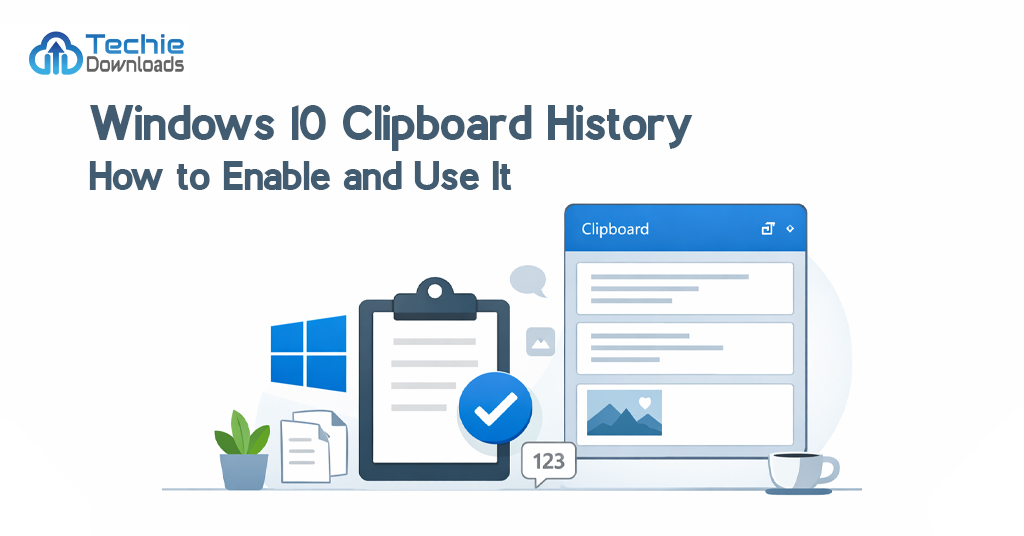
Have you ever copied something and accidentally overwritten it by copying something else? It happens a lot. That’s when the Windows 10 Clipboard History feature becomes a lifesaver. This handy feature lets you save more than just one copied item. It remembers the last few things you copied. You can pull them up later and use them when needed. No more lost links, forgotten codes, or miscopied text. This story starts with a developer. She loved multitasking but always lost her copied items. One day, she found Clipboard History. It changed everything.
Windows added this feature in the October 2018 update. Since then, users across the world wondered how they ever lived without it. With a simple shortcut, you can open your clipboard and see all your copied text and images. It’s fast, efficient, and built into the system. You won’t need third-party tools.
Many users don’t know it exists. That’s why this guide is here. We’re going to walk you through every step. You’ll learn how to enable Windows 10 Clipboard History, how to view it, and how to manage your clippings. We’ll explain shortcuts, settings, and even cloud sync options. You’ll discover tips and tricks to speed up your daily workflow. It’s time to take control of your clipboard. Let’s dive in and unlock the full power of Windows 10 Clipboard History.
What is Windows 10 Clipboard History?
To put it simply, Windows 10 Clipboard History is a clever tool built into the Windows system. It stores everything you copy, such as text, links, and small images. By default, Windows only keeps one item in the clipboard. But when Clipboard History is enabled, it can save up to 25 items. That means you can go back and reuse the things you copied before.
You don’t need to worry about the size of regular text. However, very large files or certain copied objects may not be saved. It saves mostly text and light images under 4MB. It doesn’t store files like videos or large pictures.
You access it by pressing Windows + V. This opens a small pop-up window showing all your recent clipboard items. You can then pick what you want to paste. It’s much better than the old way of copying and losing the last item. Best of all, it is free and already in your Windows 10 version after the 1809 update.
You don’t need to install any apps to use it. It saves time and increases productivity. If you copy and paste often, Windows 10 Clipboard History is for you. It feels like a small feature, but it saves so many hours. Students, writers, business users – everyone can benefit from it.
Enabling Clipboard History in Windows 10
Turning on Clipboard History in Windows 10 is very easy. First, click the Start menu and choose Settings. Then go to System, and choose Clipboard from the left panel. You’ll see an option called Clipboard History with a toggle next to it. Click the toggle to turn it On.
That’s it. You’ve enabled the feature. Now your computer starts saving all the items you copy. This setting stays on unless you turn it off later. Once it’s on, press Windows + V to open your Clipboard History anytime.
Make sure your Windows 10 build is 1809 or later. If not, you won’t see the option. It’ll show your current version. If needed, update your system using Windows Update.
You don’t need admin rights to enable this setting. Any user can do it. It works on personal and home editions too. After activation, everything you copy is stored, and it’s simple to paste them again.
Backup or forgotten content becomes a thing of the past. Most people are surprised they didn’t use it earlier. Once you know how to enable Windows 10 Clipboard History, your workflow becomes smarter and cleaner. It’s an easy switch that changes how you interact with your PC.
How to Access and Use Clipboard History
Using Windows 10 Clipboard History is just as easy as enabling it. Whenever you need access, press Windows key + V. A small window will appear on your screen. It shows the list of everything you’ve copied. You can scroll and find the item you need.
Using it is simple. Just click on any item to paste it. Wherever your cursor is, the content goes right there. You can paste text, links, and even small pictures. This history list is especially helpful for people doing a lot of writing or research.
If you want to keep something pinned, hover over it and click the pin icon. The pinned item stays in the list even after a reboot. Unpinned items are usually wiped when the system restarts. So, use the pin to save your most used snippets.
You don’t need to worry about the order. The newest copied item is always at the top. Even when you paste, it doesn’t change positions unless copied again. It’s clean and very user-friendly. The icon even shows a preview of the content.
Using Windows 10 Clipboard History daily will make your computer use faster and better. It’s like a notepad behind the scenes. Once mastered, it quickly becomes your favorite Windows feature. It can help in emails, note-taking, forms, or online chats.
Advantages of Using Clipboard History in Windows 10
There are many reasons to use Windows 10 Clipboard History. First, it boosts your efficiency. You can copy many things throughout the day and access them later. There’s no need to go back and forth. Just press Windows + V and pick what you need.
It reduces mistakes. No more losing copied text. If you need something from 10 minutes ago, it’s likely in your history. You don’t have to repeat steps. That saves time and mental energy.
Organization becomes easier. You can pin important clips for easy access. For writers, it’s perfect. You can quickly switch helping sentences or bring back a deleted point. Students love it when doing research or group assignments.
You don’t have to install anything. It’s a built-in tool. No updates, no ads, no extra apps. It works silently and quickly. Faster than some clipboard manager apps too.
It helps people with memory issues or attention lapses. You can check what you had copied rather than try to recall. It also helps office workers send correct information. If someone asks for a link or number you copied an hour ago, you can find it quickly.
As your usage grows, you’ll discover even more benefits. The real power of Windows 10 Clipboard History shows itself during busy workdays. Using it daily changes how you copy and paste forever. It’s an underrated tool that deserves more attention.
Pinning and Managing Clipboard Items
Managing clipboard items is part of using Windows 10 Clipboard History smartly. The system records recent items, but what’s better is the ability to pin useful ones. Pinning is done by pressing the pin icon next to the item inside the history window.
Once an item is pinned, it won’t get deleted after restarting your PC. It stays saved until you unpin it. This helps when you reuse certain phrases, email templates, or even emojis. Each user can pin multiple items with ease.
To delete from the clipboard, open it by pressing Windows + V, then click the three dots next to the item and select delete. You can also clear all the clipboard items at once, except the ones you pinned.
This control over your history is powerful. It helps you reduce mess, keep only useful things, and make room for new entries. Smart clipboard use starts with managing your list regularly.
Take time each week to check your pinned list. It sharpens your workflow. You’ll always be copying content, so keeping your history clean matters. Less clutter means faster pasting.
You don’t have to memorize special steps. Everything works with just a few clicks. Combine pinning with deleting, and you’ll become a real clipboard pro. Windows 10 Clipboard History is more than a shortcut—it’s a smart filing system for all copy actions.
Syncing Clipboard History Across Devices
One underrated part of Windows 10 Clipboard History is the option to sync it across multiple devices. If you use a Microsoft account, syncing becomes possible. You’ll find a switch under “Sync across devices”.
Once enabled, your copied items travel with you. You have to sign in with the same Microsoft account on both devices. Also, both devices must have Clipboard History enabled. Now when you copy a text on one device, it shows on the other.
It’s useful if you work between a desktop and a laptop. Or between office and home computers. Seamless data transfer without emails or USBs. However, the sync only works for text and not images or files.
Your clipboard sync is done securely. Microsoft uses encryption. Also, you can choose to turn off sync anytime. There’s also an option to manually sync rather than automatic syncing. That gives more control.
This feature saves users from having to email themselves text. Or use note-taking apps just to jump files. From web links to work chats, the sync feature keeps your data close. Once used, multitasking across systems becomes easy.
Most people miss out on this feature. But it’s a game-changer. If you like working from many places, Windows 10 Clipboard History syncing is the trick you’ve been looking for.
How to Clear or Delete Clipboard History
At times, you may want a fresh start. Luckily, Windows 10 Clipboard History makes it easy to clear or delete older entries. Whether it’s for privacy, space, or just cleanup, the option is simple.
First, press Windows + V. This opens your clipboard manager. To delete single items, click the three dots next to the copied entry. Then, click “Delete.” Do this for every entry you want gone.
To remove everything at once, there’s a better way. Go to Settings > System > Clipboard. Scroll down and click “Clear.” This removes all items except pinned ones. It’s fast, clean, and efficient.
You can also remove the clipboard content by restarting your PC. When the device turns off, the unpinned data is gone. So, sensitive or temporary content won’t stick around.
If you worry about privacy, clearing the clipboard regularly is a good habit. You can even turn off Clipboard History anytime. Just return to the settings and toggle it off.
Also, keep in mind that clearing Clipboard History can’t be undone. Once deleted, it’s gone for good.
With these simple steps, you control what stays and what goes. That’s the beauty of Windows 10 Clipboard History.
Next, let’s explore what to do when Clipboard History stops working or bugs occur.
Troubleshooting Windows 10 Clipboard History Issues
Sometimes, Windows 10 Clipboard History may stop working. Don’t worry. The fix is often easy and fast.
First, check if Clipboard History is turned on. Go to Settings > System > Clipboard. Make sure “Clipboard History” is toggled to “On.” If it’s off, the shortcut Windows + V won’t show anything.
If it is turned on but still not working, restart your PC. A quick reboot can often fix software glitches.
Next, check if your Windows is updated. Go to Settings > Update & Security > Windows Update. Install any pending updates. Many clipboard issues are fixed with the latest patches.
If the Windows + V shortcut does nothing, try typing “Clipboard Settings” in the Start menu. That opens the right area.
Also, if syncing is not working, make sure you’re signed in to your Microsoft account. Then check that sync settings are enabled.
Still not fixed? Try running the built-in Windows troubleshooter. Go to Settings > Updates & Security > Troubleshoot and follow steps. It may detect clipboard-related problems.
As a last resort, reset the Clipboard feature. This may involve editing Registry settings or using PowerShell, but be cautious.
Though errors happen, Windows 10 Clipboard History is usually stable. With a few quick checks, it works like normal again.
Now let’s look at the differences between Clipboard History and traditional clipboard.
Clipboard History vs Traditional Clipboard
Many users don’t know this. The standard clipboard and Windows 10 Clipboard History are different tools. One is simple. The other is powerful.
The traditional clipboard only saves the last copied item. Once you copy another, the first is lost.
But with Windows 10 Clipboard History, you get a list of copied items. You can scroll, find, and reuse them at any time. This changes the way you work—forever.
For example, with the old clipboard, copying two things meant losing the first one. Now, with Clipboard History, you can copy ten things and choose which one to paste.
Also, only the new clipboard allows pinning. It supports text, links, and even small images. You can open it with Windows + V. The classic clipboard never had a built-in interface like this.
Plus, the new history works with sync across devices. The regular clipboard has zero cloud power.
The bottom line is clear. Windows 10 Clipboard History is a better, smarter version. It gives more control, helps multitasking, and fits modern needs.
Still, if you only need simple copy-paste, you can use the old way. No setup required. But once you try Clipboard History, you may never go back.
Let’s now look at third-party clipboard tools and compare them with the built-in feature.
Can Third-Party Clipboard Tools Replace Clipboard History?
Windows 10 Clipboard History is great. But still, some power users need more. That’s where third-party clipboard managers enter the game. Are they better? Let’s find out.
There are many clipboard tools online. Apps like Ditto, ClipClip, and ClipboardFusion give even more control. They offer features like advanced search, folders, and cloud backup. Great for heavy users.
But here’s the truth. For most users, Windows 10 Clipboard History is enough. It’s fast, light, and built into the system. No downloads. No added risks.
If all you need is to save recent copied items, the built-in tool works fine. It’s safe and simple. It also works well with security tools and doesn’t slow your PC.
However, if you manage thousands of clips, or work in coding or writing fields, extra features help. Third-party tools allow data tags, filters, and rules. Some even support syncing on Mac.
Still, the risk exists with external tools. Not all apps are safe. Some may track your data or use ads. Always download from trusted sources.
So here’s the best advice. Start with Windows 10 Clipboard History. Learn it. Use it daily. Then, if it’s not enough, try a third-party app. See if it fits your flow.
But remember, for most users, the built-in clipboard does the job well.
Coming up next — our special deals and where to buy upgrades!
Best Clipboard Tools & Tech Deals – Powered by TechieDownloads.com
Your journey with Clipboard tools doesn’t end at Windows 10 Clipboard History. If you’re searching for more clipboard software, tech tools, or PC utilities, look no further. Head over to TechieDownloads.com for the best deals on top-rated tech apps.
At TechieDownloads.com, find premium clipboard managers like Ditto, ClipMate, and ClipboardFusion Pro, often at big discounts. These tools offer cloud sync, multiple clipboard storage, and even cross-OS compatibility.
In fact, many pair well with Windows 10 Clipboard History. Use them together for best results. Some software exclusive to TechieDownloads even includes AI-powered features.
Every deal is verified. Only real software. No spam. No malware. Just real value.
Besides clipboard apps, get deals on antivirus software, optimization tools, Windows system boosters, and more.
Need to upgrade RAM or hardware? TechieDownloads also links to best online stores. Find trusted reviews and easy download links.
So why wait? Before spending full price elsewhere, check TechieDownloads.com. Get more tools. Save more money. Work faster and smarter—all in one place.
Your workflow deserves better tools. Add power now, without breaking the bank.
Next, let’s wrap this in a clear and helpful conclusion.
Use Cases of Windows 10 Clipboard History in Real Life
Windows 10 Clipboard History helps everyday users more than they realize. You may copy things every single day. But with this feature, your copied content becomes much smarter. It changes the way you work.
Let’s take students first. They often copy research, notes, and links. With Clipboard History, they paste from several items without switching tabs each time. Learning becomes faster.
Office workers also benefit. Want to copy email replies, codes, or templates? Keep them pinned. Use them all week with just one shortcut. This saves serious time.
Writers use this tool to manage quotes, headers, credits, or topics. They copy from the web and edit later—all with quick access. No missed ideas.
Designers can copy color codes, hex values, or quick commands. Instead of searching recent entries, they use pinned items to paste instantly.
Even during chats, you can paste old messages. No scrolling, no rewriting. Just press Windows + V and pick your line.
Windows 10 Clipboard History also helps with forms and datasets. You copy several entries at once. Then paste them at needed steps. This feature helps both slow and fast typists.
Thinking of brainstorming ideas or writing poetry? Capture each word you copy. Then go back, review everything from Clipboard History. Nothing is lost.
As you see, Clipboard History is more than copy and paste. It’s a true time-saver in daily life.
Up next, we’ll give you tips to become a Clipboard pro.
Top Tips to Master Windows 10 Clipboard History Like a Pro
If you want to be faster at work, mastering Windows 10 Clipboard History is key. Many people use it, but few know the advanced tricks. These tips will help you get ahead.
First tip—learn the shortcut Windows + V. Use it often. It saves many clicks and helps avoid re-copying.
Second, always pin your important clips. Maybe it’s a phone number, address, or a reply line. Pin it. That saves hours later.
Third, keep your clipboard clean. Delete unused items weekly. This keeps things neat and improves focus.
Also, turn off sync if your PC is shared. That keeps copies private. You can do this in Settings > System > Clipboard.
Another tip: Use clipboard content with drag and drop. Copy the item, press Windows + V, pin it, then drag into apps like Word. Saves steps.
Create a habit around your Clipboard History. For example, before meetings or emails, preload your Clipboard with message lines or bullet points. Then use Windows + V to paste them one by one.
Don’t ignore the three-dot menu. That’s where you’ll find pin, delete, and clear options. It offers total control.
Lastly, explore the syncing feature on two Windows devices. Try copying on your laptop. Then paste on your desktop. This clever trick saves time while multitasking.
By using these tips, you’ll save minutes each day. That adds up to hours each week.
Now let’s wrap up everything with our final thoughts.
Final Thoughts on Windows 10 Clipboard History
Windows 10 Clipboard History is not just another feature. It is your secret weapon for better workflows. Once you turn it on and learn how to use it, you won’t look back. It gives you power over your past copies.
What makes it even better is how easy it is to use. Just press Windows + V. That’s it. Then your entire Clipboard History appears. It works smoothly, quietly, and efficiently.
Use Clipboard History for writing, working, sharing, or just copying fun lines and ideas. It fits every need.
As we’ve shown across all sections, it’s more than a simple upgrade. It boosts productivity, saves time, and reduces frustration. Traditional copy-paste is fine. But Windows 10 Clipboard History turns it into a powerhouse.
If you use multiple devices or copy items daily, you need this. Don’t ignore it. Start small—copy, pin, and paste. Then slowly explore sync, privacy, and third-party options.
Pair it with great tools from trusted sites like TechieDownloads.com to unlock even more features.
In digital life, we all look for shortcuts. This is one of the best.
Windows 10 Clipboard History combines speed, function, and control. It’s built-in. So there’s no extra cost. Just open settings and turn it on.
So go ahead—copy smarter. Work better. Paste faster. Your fingers and brain will thank you.
You’re now set with all you need to know. Scroll down for commonly asked questions about Windows 10 Clipboard History.
FAQs: Windows 10 Clipboard History
1. What is Windows 10 Clipboard History?
It is a feature that stores copies of texts, links, or images. You can view and reuse them using the Windows + V shortcut.
2. How can I turn on Clipboard History in Windows 10?
Go to Settings > System > Clipboard, then toggle on Clipboard History. Use the shortcut Windows + V to access it.
3. How many items can Clipboard History save?
By default, it saves up to 25 items. Older copies are removed when the limit is reached.
4. Can I sync Clipboard History between devices?
Yes, you can sync clipboard contents across Windows 10 devices using a Microsoft account. Turn on ‘Sync across devices’ in settings.
5. Is Windows 10 Clipboard History safe to use?
Yes. It keeps your data private. Only you can access it unless you allow syncing. You can also clear history anytime.